How to Resize an Image in Paint 3D Quickly & Easily
We often need to resize an image—whether for a website, social media, or to reduce file size. If the image is too large, it does not upload, and an error occurs repeatedly. Fortunately, you do not need any complicated software for this task. In Paint 3D, you can resize an image in a few simple steps. This method is also fast and very easy for new users. Below, I will walk you through all that will take a few seconds.
How to resize an image in Paint 3D without losing quality
When you resize an image in Paint 3D, always remember one thing: it’s safe to reduce the image’s size, but enlarging it often degrades its quality. No software can automatically sharpen an image if it’s already blurry, but resizing it properly can preserve its original clarity. When you reduce the size of an image, Paint 3D only removes excess pixels while maintaining essential details.
That’s why the image remains sharp. But when you enlarge it, Paint 3D creates new pixels by “guessing” them, which often degrades the quality. If you really need to enlarge the image, it’s better to use an AI Upscale. For general resizing, Paint 3D works great and gives a clean result in a few seconds.
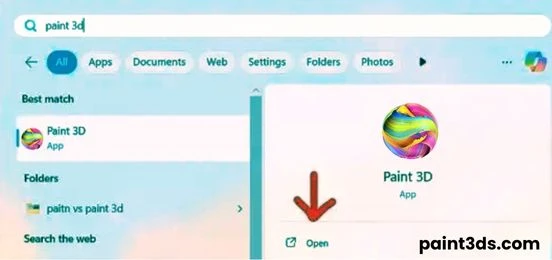
Step 1: Open the Start Menu on your computer and open the app by typing Paint 3D in the search bar.
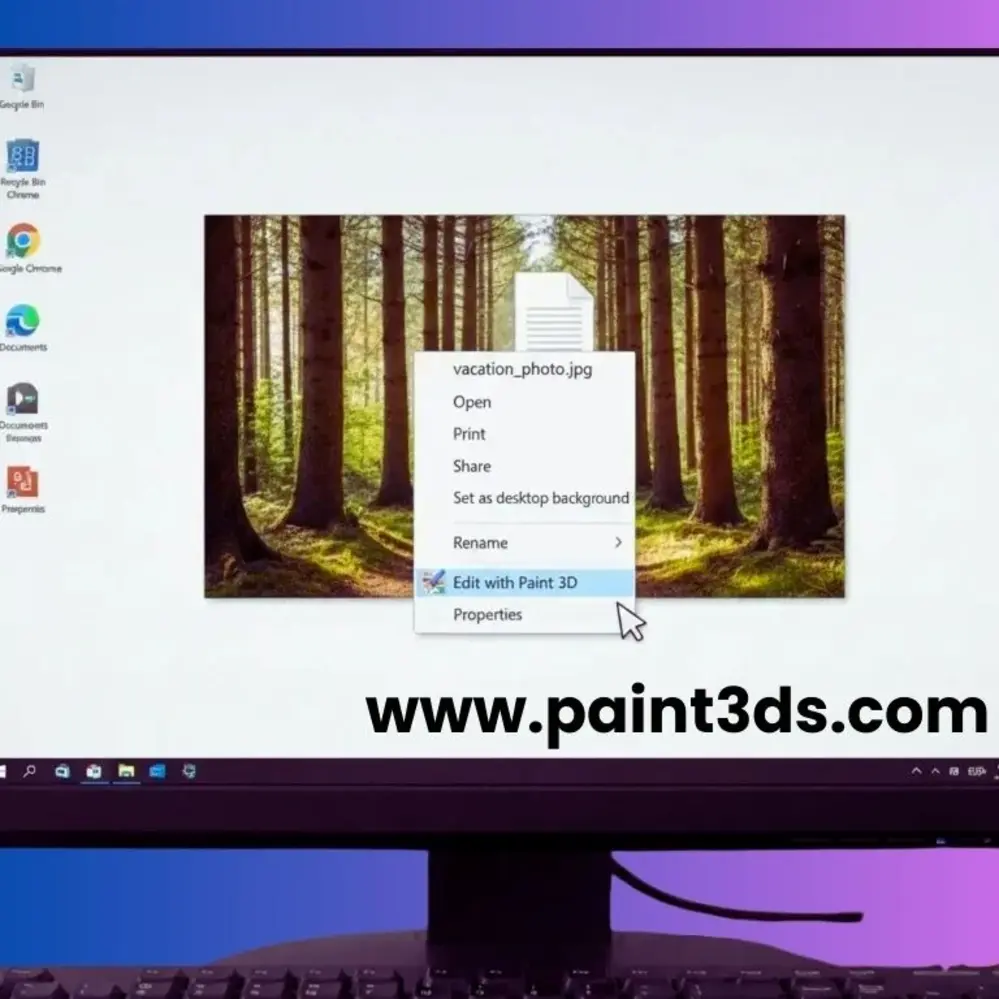
Step 2: If you want, right-click on your image and select “Edit with Paint 3D.” The image will open in the app immediately.
Step 3: Click on the Canvas option from the toolbar at the top (or press Alt + C) to bring up the necessary settings for resizing.

Step 4: In the panel on the right, select the important checkboxes that will resize the image with the correct proportions and maintain quality.
It is important to resize the image correctly so that it does not become distorted or disproportionate. There are important settings to pay attention to:
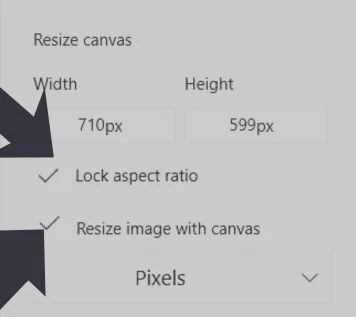
Step 4: In the panel on the right, select the important checkboxes that will resize the image with the correct proportions and maintain quality.
Step 5: Resize with Canvas
This setting ensures that there is no white space around the image when resizing, meaning the image fits perfectly in place.
Step 6: Lock Aspect Ratio
This prevents the image from being stretched or compressed and maintains the proportions.
Step 7: Easy steps to resize an image:
Pro tip:
Always keep a copy of the original high-resolution image. If you want to use the image after it has been enlarged, re-sharpen it with AI or online enhancement tools. This will prevent the image from becoming blurry and preserve its quality.
How to resize an image? Learn the real difference between pixels and percentages!
When you try to resize an image in Paint 3D, you get two choices: pixels or percentage. Here’s what that means.
The percentage option :
Most websites give you dimensions in pixels, so use pixels for almost everything. It’s accurate, simple, and works every time.
How to Resize an Image in Paint 3D and Keep Aspect Ratio Locked
The aspect ratio is the ratio of an image’s width to its height. This ratio determines how the image will look. If this ratio is locked, resizing the image will not change it. But if this ratio is unlocked, changing only the width or only the height will stretch or compress the image, distorting its shape.
That is why the most crucial thing when resizing is to keep the “Lock Aspect Ratio” option turned on. Paint 3D automatically updates the other value as soon as it is turned on, so the original image shape is maintained.
How does it work? (Simple example)
Assume the original size of the image is:
If you write 1200 in the width only, Paint 3D automatically makes the height 800.
Important tip
If the image is too large and you don’t know which value to change :
How to resize an image in Paint 3D using keyboard shortcuts
If you resize images daily or frequently, keyboard shortcuts can save you a lot of time. Instead of using the mouse, you can quickly resize images by remembering just a few commands. These few shortcuts do the real work in Paint 3D; all the other options are optional.
| Shortcut | What It Does |
| Alt + C | Opens the canvas settings (where all sizes are to be changed) |
| M | This shortcut is for showing or hiding the sidebar. |
| Ctrl + S | This shortcut saves the image immediately. |
| Ctrl + Z | Redo your last change (helpful if the size gets messed up) |
| Ctrl + Shift + S | “Save As” (Does not change the original file, creates a new copy) |
Complete workflow:
Resizing an image in Paint 3D for the web, social media, or printing
Every place requires a different size for an image. This simple method will help you keep the size correct :
| Platform | Image Type | Dimensions (Pixels) |
|---|---|---|
| Square post | 1080 × 1080 | |
| Story | 1080 × 1920 | |
| Cover photo | 820 × 312 | |
| Shared image | 1200 × 630 | |
| Twitter/X | Header | 1500 × 500 |
| Twitter/X | Post image | 1200 × 675 |
| Post image | 1200 × 627 | |
| YouTube | Thumbnail | 1280 × 720 |
For Web Images
I use this size for small websites to ensure fast loading.
For Printing
There is a different standard for printing. For sharp and clear prints, keep your image at 300 DPI. If the image is too small, the print will look blurry. You can’t fix this in Paint 3D; you’ll need the original high-resolution image.
| Print Size | Dimensions at 300 DPI |
|---|---|
| 4×6 inches | 1200 × 1800 pixels |
| 5×7 inches | 1500 × 2100 pixels |
| 8×10 inches | 2400 × 3000 pixels |
5 Here are 5 common mistakes and their easy solutions when resizing an image in Paint 3D.
Mistake 1: Forgetting to check “Resize image with canvas.”
If you change the canvas but don’t check it, your image stays the same, leaving extra white space.
Fix: Always check the resized image against the canvas to ensure the image resizes.
Mistake 2: Not locking the aspect ratio
Typing random width and height values can distort your image.
Fix: Tick Lock aspect ratio. Paint 3D keeps the width and height in the right balance.
Mistake 3: Making images too big
Enlarging a small image makes it blurry and pixelated.
Fix: Only shrink websites and social images. Don’t enlarge small photos for print.
Mistake 4: Using percentages instead of pixels
A 50% size may not be what the website wants.
Fix: Use pixels and type the correct width and height.
Mistake 5: Not saving a copy
Overwriting your original image can cost you dearly later.
Fix: Use Ctrl + Shift + S (“Save As”) to create a new copy and keep the original.
Why Paint 3D is Better for Resizing Images in 2025
Paint 3D is better for resizing, as it has a lock aspect ratio checkbox. Plus, it lets you switch between pixels and percentages and shows a clean canvas sidebar for accurate sizing. Classic Paint is quick and easy to use for quick shrinking, and its 2025 update includes layer and background removal. For precise sizing, I’d choose 3D.